A surprisingly simple backup for Tuya, eWeLink, smart switches, solar inverter monitoring and other Wi-Fi devices
Your fibre connection goes down.
That’s irritating enough when Netflix stops working, but a modern home may have much more depending on that internet connection.
Your solar inverter monitoring disappears. Smart switches show as offline. Tuya or eWeLink devices stop responding remotely. Wi-Fi cameras may lose cloud access. Smart plugs, timers and other connected devices suddenly aren’t quite so smart.
You could reconnect every device individually to your phone’s hotspot.
Don’t.
There is a much easier trick.
Make Your Phone Pretend to Be Your Home Wi-Fi
Most Wi-Fi smart devices remember the wireless network they were originally configured to use.
Typically, that means they know things such as:
Wi-Fi network name (SSID): MyHomeWiFi
Password: MySecretPassword
When the device starts up, it looks for that network.
So instead of teaching every smart device about a new hotspot, we can turn the problem around:
Make the hotspot look like the network the devices already know.
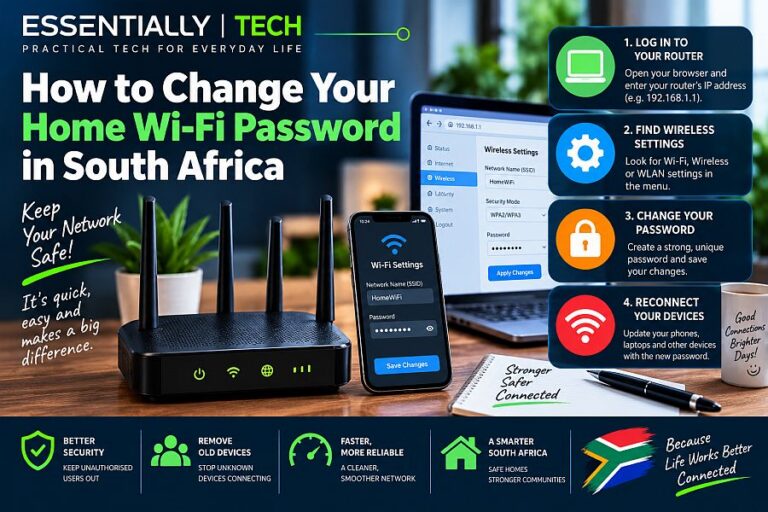
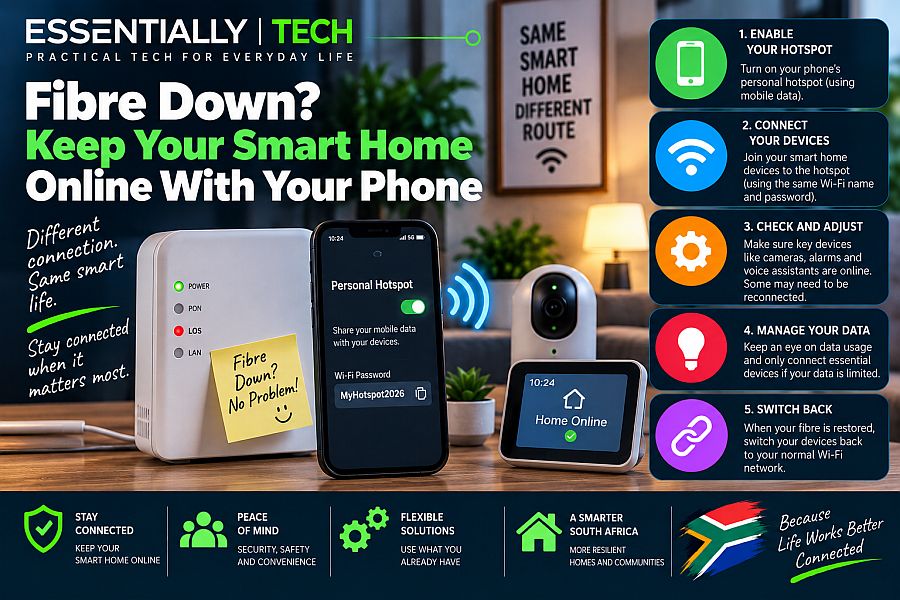
Set your cellular phone’s hotspot to use the same Wi-Fi name and password as your normal home Wi-Fi.
Where possible, also make sure the hotspot is using compatible Wi-Fi security and 2.4 GHz.
Then temporarily switch off your normal Wi-Fi router or access point so that your phone is the network broadcasting those credentials.
To your smart devices, their familiar network has effectively come back.
Except this time, the internet connection behind it is your phone’s mobile data.
Why This Works
Your smart plug doesn’t know that fibre has failed.
It doesn’t really know that it’s connecting to your phone either.
It simply sees:
There’s my Wi-Fi network. I know the password. Connect.
Once connected to the hotspot, the phone provides internet access using its 4G or 5G mobile connection.
That can be enough to bring cloud-connected smart-home devices back online.
Tuya devices can reach the Tuya cloud again. eWeLink switches can reconnect to their service. Your inverter’s Wi-Fi monitoring module may start reporting again. Other compatible Wi-Fi devices can regain internet access without being reconfigured one at a time.
And when the fibre connection eventually returns, switch off the hotspot and turn your normal Wi-Fi back on.
The devices see their familiar network again and should reconnect normally.
No factory resets. No pairing everything again. No changing dozens of Wi-Fi settings.
The Three Things That Need to Match
This is the important bit.
For the trick to work reliably, don’t just copy the Wi-Fi name.
1. Same network name (SSID)
If your home Wi-Fi is:
SmithHome
your phone hotspot should also be:
SmithHome
Capitalisation matters, so copy it exactly.
2. Same password
Use exactly the same Wi-Fi password as the normal network.
3. Compatible Wi-Fi band and security
This is the part most likely to catch people out.
A huge number of inexpensive smart-home devices operate only on 2.4 GHz Wi-Fi.
Some modern phones prefer to create a 5 GHz hotspot.
If your phone gives you the option, select 2.4 GHz, “Maximise Compatibility”, or the equivalent setting.
Similarly, some older IoT devices can have problems with newer WPA3-only security. A WPA2-compatible hotspot is generally the safer choice for older smart-home equipment, where your phone provides that option.
A Practical Example
Imagine your house has:
- 8 Tuya smart switches
- 3 eWeLink/Sonoff devices
- a Wi-Fi solar inverter monitoring dongle
- 2 smart plugs
- a Wi-Fi energy meter
Normally, all of them connect to:
SSID: HomeNet
Password: example123
Your fibre ONT or ISP connection goes down.
Instead of reconfiguring 15 devices, configure your phone hotspot as:
SSID: HomeNet
Password: example123
Band: 2.4 GHz if required
Switch off the normal Wi-Fi access point, enable the cellular phone hotspot and give the devices a little time.
One by one, compatible devices should begin reconnecting.
Your phone has effectively become an emergency replacement for your home internet connection.
But What About My Normal Wi-Fi Router?
There is an important distinction here.
Your router normally performs two jobs:
Internet gateway: connecting your house to the internet.
Local network: allowing devices inside your house to communicate with each other.
The hotspot trick replaces enough of that functionality to get many cloud-connected Wi-Fi devices online.
It does not perfectly recreate your home network.
Devices that depend on fixed local IP addresses, local servers, Home Assistant installations, NAS drives, Ethernet connections or devices that need to communicate directly with one another may not work normally.
That’s where things get more interesting.
Advanced Option: Feed Your Mobile Internet Into the Router
Suppose you don’t only want the smart plugs online.
Perhaps you also need:
- desktop PCs connected by Ethernet;
- a wired alarm or CCTV system;
- network printers;
- wired smart-home controllers;
- other devices connected to your normal router.
Now we need a different approach.
One possible emergency setup is:
Mobile network → Phone → USB tethering → Laptop → Ethernet → Router
Your phone provides the mobile internet connection.
Connect the phone to a laptop using USB and enable USB tethering.
The laptop now has internet access through the phone.
You can then use the operating system’s Internet Connection Sharing or equivalent feature to share that mobile connection through the laptop’s Ethernet adapter.
Connect the laptop’s Ethernet port to the appropriate Ethernet/WAN interface of your network equipment.
In effect, you’re using the laptop as a temporary bridge/router between the phone and your home network.
Is it possible?
Yes.
Is it elegant?
Not particularly.
There can be IP addressing, DHCP, NAT and router-configuration complications depending on your equipment. Some routers also make WAN failover much easier than others.
So for a short fibre outage, I wouldn’t start here unless you actually need the wired network.
For getting a handful of cloud-connected smart devices and your inverter monitor back online, cloning the Wi-Fi credentials on your phone is vastly simpler.
What Will Still Work Without Internet?
There’s another useful lesson hidden in all this.
Wi-Fi being up and the internet being up are not the same thing.
Some smart devices have schedules stored locally. If so, they may continue switching on and off according to their programmed schedule even when the internet is unavailable.
Other functions depend on cloud services and won’t work until internet connectivity returns.
For example, depending on the device and how it has been configured:
| Function | During Internet Failure |
|---|---|
| Locally stored timer | May continue working |
| Physical wall switch | Usually works |
| Tuya/eWeLink remote control | Usually requires internet |
| Cloud automation | May not operate |
| Inverter itself | Continues operating |
| Inverter cloud monitoring | Usually goes offline |
| Local smart-home automation | May continue working |
| Remote camera viewing | Usually requires internet |
That last inverter distinction is worth remembering.
Losing your inverter monitoring does not mean your inverter has stopped working.
Usually, only the monitoring connection has disappeared.
A Few Warnings Before You Try It
Watch your mobile data
Smart switches themselves normally use very little data.
But the moment phones, TVs, computers, cameras and other devices discover that “the Wi-Fi is back”, they may start syncing photos, downloading updates, streaming video or uploading camera footage.
That can turn an emergency hotspot into an impressive mobile-data bill.
If possible, only connect the devices you actually need.
Don’t leave two identical Wi-Fi networks running unnecessarily
If your router is still broadcasting the same SSID while your phone is also broadcasting it, devices may connect unpredictably between the two.
For a simple emergency setup, temporarily switching off the normal Wi-Fi access point is cleaner.
Your phone becomes infrastructure
Once your phone is providing the home’s backup internet, walking out of the house with it has predictable consequences.
So does a flat battery.
Keep it plugged into a charger or power bank if the outage is likely to last.
And, rather appropriately for a smart-home emergency solution, don’t put that charger on one of the smart plugs you’re trying to rescue.
Essentially: The TL;DR
When your fibre connection fails, don’t immediately reconfigure every smart device in your house.
Try this first:
1. Check the exact SSID and password used by your home Wi-Fi.
2. Switch off your normal Wi-Fi access point.
3. Give your phone hotspot the same SSID and password.
4. Set the hotspot to 2.4 GHz/compatibility mode if your smart devices require it.
5. Turn on the hotspot.
6. Give your smart devices a few minutes to reconnect.
Your Tuya switches, eWeLink devices, inverter monitor and other compatible Wi-Fi equipment may simply come back online — without changing their configuration at all.
When fibre returns, reverse the process.
“The trick isn’t teaching your smart home about a new network. It’s making the new network look like home. Don’t change 20 devices. Change one phone”
— Essentially