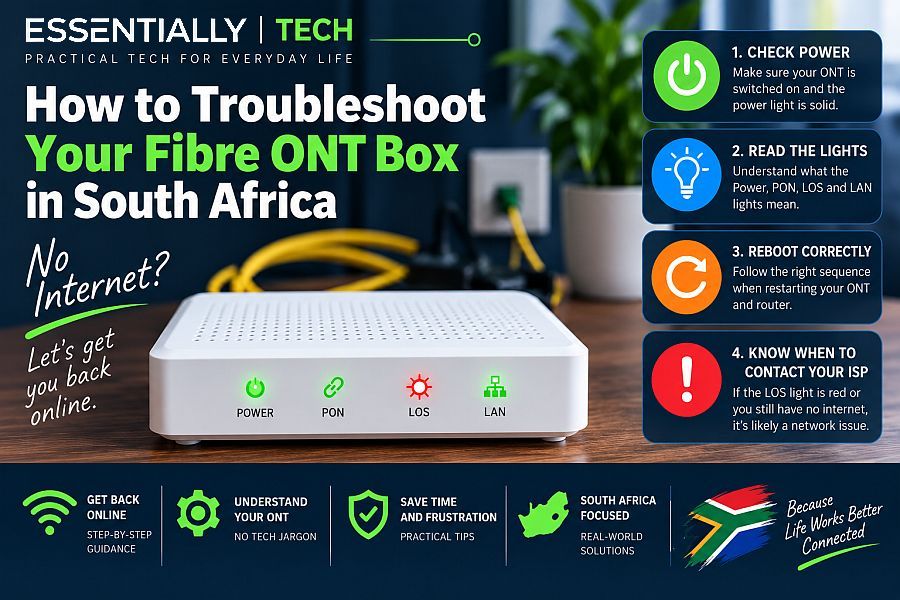
If you need to troubleshoot your fibre ONT, start with the lights on the box before assuming the problem is your Wi-Fi router. This device is called an Optical Network Terminal (ONT), and it acts as the bridge between the underground fibre optic cables and your home network.
Essentially, troubleshooting a fibre ONT box boils down to checking the power connection, reading the status LED lights, and performing a controlled power cycle. Knowing how to decode these lights can save you hours of waiting on hold with your Internet Service Provider (ISP) like Afrihost, Cool Ideas, or Webafrica.
1. The 60-Second Fix: The Controlled Power Cycle
Before touching any cables or calling your ISP, try a controlled reboot. This resolves the vast majority of temporary network glitches and IP assignment conflicts.
- Unplug the power: Pull the power adapter out of the back of the ONT box (or switch off its dedicated wall plug).
- Unplug the router: Unplug your Wi-Fi router’s power cable as well.
- Wait 60 seconds: Leave both devices entirely powered down to allow the capacitors to drain completely.
- Power the ONT first: Plug the ONT box back in and wait 2 to 3 minutes until the lights stabilise.
- Power the router: Plug your Wi-Fi router back in and wait for the Wi-Fi network to broadcast.
2. How to Troubleshoot Your Fibre ONT Using the Status Lights
Depending on your underlying infrastructure provider (such as Vumatel, Frogfoot, MetroFibre, or Openserve), you may have a Huawei, Nokia, Calix or another ONT model. While layouts and indicator lights vary between devices, the basic troubleshooting principles are similar. Afrihost also provides a useful reference showing ONT lights and their meanings across several common South African fibre networks and ONT models.
Power Light (PWR)
- Solid Green: The unit is receiving electricity normally.
- Off: There is no power. Check your multi-plug, look for loose cables, or verify if load-shedding / a localised power outage has hit your area.
PON Light (Passive Optical Network)
- Solid Green: Excellent news. This means your ONT has successfully authenticated and established a secure connection with your network provider’s main exchange.
- Flashing Green: The box is actively trying to connect or download a firmware update. Wait a few minutes.
LOS Light (Loss of Service)
- Solid or Flashing Red: This indicates a total loss of the optical light signal. The physical fibre line is broken, disconnected, or there is an infrastructure-wide outage.
- Off: This is the normal state. You do not want to see a red light here.
LAN / ETH Light (Ethernet Connection)
- Solid or Flashing Green: The network cable running from your ONT to your Wi-Fi router is plugged in tightly and transmitting data perfectly.
- Off: The ONT cannot see your router. Check that the network cable is securely clicked into the WAN or Internet port on your router.
3. Quick Reference Status Guide
| LED Indicator | Light Status | Meaning | Required Action |
|---|---|---|---|
| LOS | 🔴 Red | No light signal detected. | Check for local fibre outages or a physically broken wall cable. |
| PON | 🟢 Solid | Authenticated successfully. | Your line is active. The issue is likely your Wi-Fi router settings. |
| PON | ⚪ Off | Not synchronized. | Perform a power cycle; if it remains off, log a ticket. |
| LAN / ETH | ⚪ Off | No router detected. | Unplug and firmly re-seat the Ethernet cable on both ends. |
4. What to Do if the LOS Light is Red
If your LOS light is flashing red, the problem is external and cannot be fixed with software.
- Inspect the fibre patch cord: Check the thin, yellow cable running from your wall box to the ONT. If it is sharply bent, pinched under furniture, or chewed by a pet, the internal glass fibre is broken. It will need to be replaced by a technician.
- Check local network status portals: Open your phone’s cellular data and check the network status pages or social media channels for Vumatel, Frogfoot, or Openserve to see if an area-wide fibre break or outage has been declared.
- Contact your ISP: If there is no stated outage and your cables are pristine, contact your ISP helpdesk. Tell them explicitly: “My ONT box has a solid red LOS light.” This tells them immediately that the fault is on the line, preventing them from wasting your time with unnecessary router settings changes.
If these steps don’t resolve the problem, you’ve now done the basic checks needed to troubleshoot your fibre ONT and can give your ISP much more useful information about what the status lights are showing.
Essentially: The TL;DR
- The Core Fix: Turn off both the ONT and router for 60 seconds, then power the ONT back on first.
- The Red Flag: A Red LOS light means the physical line is dead or broken outside your house. Only your network provider can fix this.
- The Cable Check: Ensure the network cable runs from the ONT’s LAN1 port directly into your router’s WAN port.
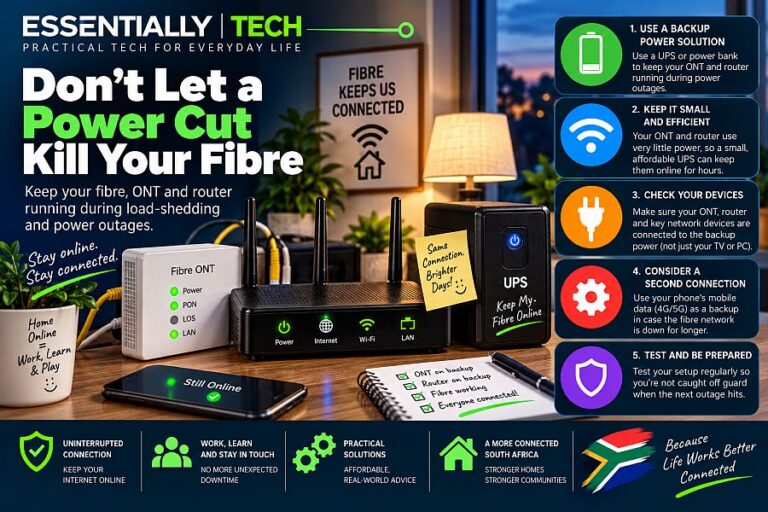
Power problem rather than a fibre fault? Read Don’t Let a Power Cut Kill Your Fibre to learn how to keep both your ONT and router running with a mini UPS. If the fibre network itself is down, see Fibre Down? Keep Your Smart Home Online With Your Phone for a simple mobile-hotspot backup trick.
Disclaimer: This guide is intended for general informational and home troubleshooting purposes only. Please follow the explicit instructions provided by your specific Internet Service Provider (ISP) or network infrastructure operator before attempting adjustments to network equipment.