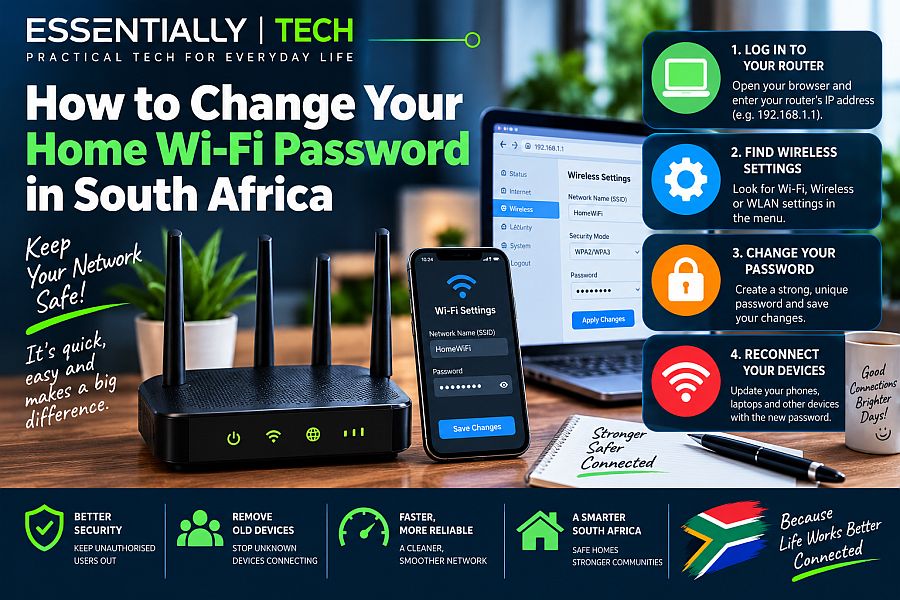
Changing your home Wi-Fi password is one of the most effective ways to secure your home network, improve internet speeds, and kick unauthorised devices off your line. Whether you are using a router supplied by Vuma, Openserve, Frogfoot, or a custom unit you bought yourself, the setup process follows a universal logic.
Essentially, changing your Wi-Fi password requires finding your router’s IP address, logging into the administrative gateway via an internet browser, and updating the security keys under the wireless settings. You do not need a technician or your ISP’s helpdesk to complete this task.
1. Finding Your Router’s Gateway Address
Every router has a specific internal IP address that acts as its gateway door. Before you can change your password, you must connect a phone or computer to the current Wi-Fi network and look up this number.
- Check the sticker first: Look underneath or at the back of your physical router. Almost all modern routers (Huawei, TP-Link, Tenda, Netgear) feature a factory sticker listing the default access address (e.g.,
192.168.0.1or192.168.1.1), along with the default admin username and password. - Finding it via Windows: Click your network icon, select Properties on your connected Wi-Fi, and scroll down to look for the number labelled IPv4 Default Gateway.
- Finding it via Smartphone: Go to your Wi-Fi settings, tap the gear icon next to your connected network, select View More / Advanced, and check the Gateway IP address.
2. Accessing the Router Admin Dashboard
Once you have your gateway IP address (most commonly 192.168.8.1 for LTE routers or 192.168.1.1 for fibre routers), open any standard internet browser like Google Chrome, Safari, or Microsoft Edge.
- Type the address: Type the IP number directly into the top web address URL bar (not the Google search box) and press Enter.
- Bypass security warnings: If your browser displays a warning saying “Your connection is not private”, click Advanced and select Proceed to IP address (unsafe). This is entirely normal for local router management panels.
- Enter credentials: Enter the username and password found on your router’s sticker.
- Note: This login is often simply
adminfor both fields, oradminwith a custom password printed on the unit.
- Note: This login is often simply
3. Locating and Updating Wireless Security
Every router interface looks slightly different, but the naming conventions are highly standardised across South African network providers.
- Navigate to the menu item labelled Wireless, Wi-Fi Settings, or WLAN.
- Look for the sub-menu named Wi-Fi Security or WLAN Basic Settings.
- Locate the field labelled WPA Pre-Shared Key, Wi-Fi Password, or Security Key.
- Type in your new, secure password. Ensure it contains at least 8 characters, combining uppercase letters, lowercase letters, numbers, and symbols.
- Click Apply or Save Changes.
4. Standard Router Default Logins
| Router Brand | Common Default Gateway | Default Username | Default Password |
|---|---|---|---|
| Huawei | 192.168.8.1 | admin | Printed on Sticker |
| TP-Link | 192.168.0.1 / tplinkwifi.net | admin | admin / Blank |
| Tenda | 192.168.0.1 | admin | admin |
| ZTE | 192.168.1.1 | admin | admin |
The Disconnection Event: What Happens Next
The moment you click “Save” or “Apply,” your current connection will immediately drop. This is normal behaviour. Because the router is now using a brand-new security key, your phone, laptop, smart TV, and streaming boxes will all disconnect instantly.
To reconnect, open the Wi-Fi network settings on your devices, select your home network name, choose Forget Network, select it again, and type in your newly created password.
Essentially: The TL;DR
- The Address: Type
192.168.1.1or192.168.8.1directly into your web browser bar. - The Login: Use the username and password listed on the physical sticker at the bottom of the router box.
- The Location: Navigate to WLAN / Wi-Fi Settings to alter the security key.
- The Action: Choose “Forget Network” on your phones and devices before reconnecting with the new code.
Disclaimer: This guide is intended for general informational and network optimisation purposes only. Modifying advanced router infrastructure configurations may alter local device assignments. Contact your respective internet infrastructure provider or manufacturer support if accessibility issues persist.